Techniques for Rewriting Git History
Caution
Changing history (with --amend, rebase, or --force) can have nasty side effects. If you need to change commits that already exist on GitHub, proceed with caution!
Amending Commits
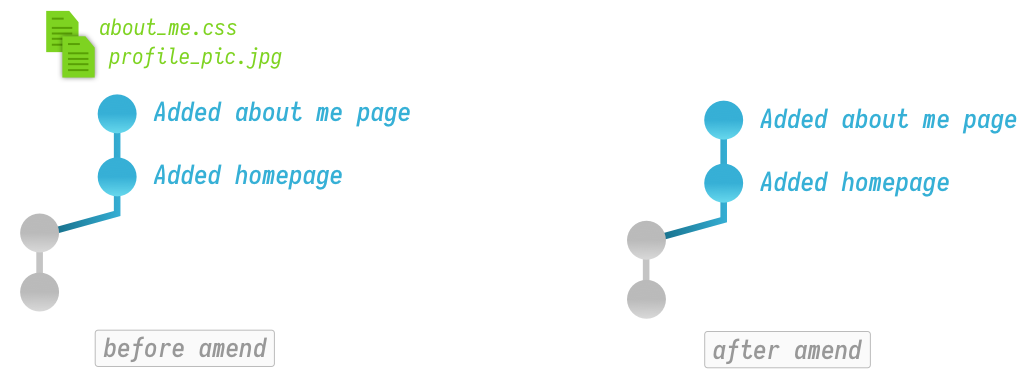
Amending refers to either adding files to, or removing files from a commit. Amend can also be used to change a commit's log message, but today I want to use it to add files to a commit.
As an example: if I run git status you can see that I have 2 files that would really like to belong in my latest commit.
Changes not staged for commit:
  (use "git add <file>..." to update what will be committed)
  (use "git checkout -- <file>..." to discard changes in working directory)

        modified:   about_me.css
        modified:   profile_pic.jpg
To get started, I'll first need to stage my files.
git add about_me.css profile_pic.jpgThen I'll use amend to add those staged changes to my most recent commit:
git commit --amend --no-editTIP
The --no-edit flag tells Git that you'd like to leave the commit message of your latest commit unchanged. If you want to update the commit message, remove this flag.
That's all there is to it.
Rewording Commit Messages
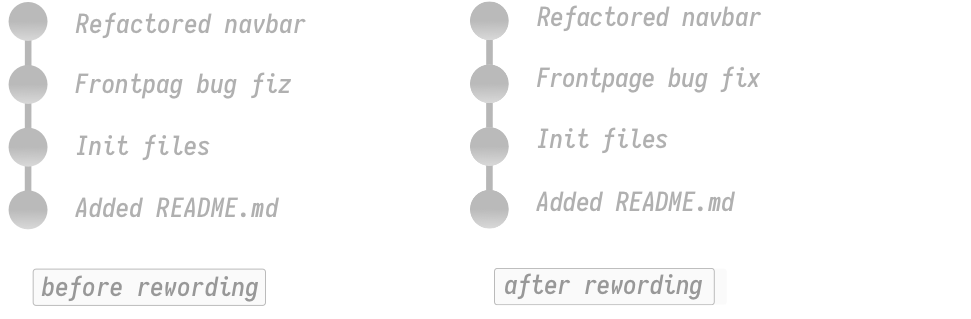
What if you want to reword a commit message? Enter interactive rebase and its plethora of options. I'll start by telling Git I want to enter interactive rebase and operate upon the last 2 commits back from HEAD.
git rebase -i HEAD~2Git will then open up my default terminal text editor (most likely vim) and present me with a file that I'll need to edit.
pick 7f9d4bf Frontpag bug fiz
pick 3f8e810 Refactored navbar

# Rebase 4095f73..ec48d74 onto 4095f73 (3 commands)
#
# Commands:
# p, pick <commit> = use commit
# r, reword <commit> = use commit, but edit the commit message
# ...
As you can see, at the top, there is a list of commits, and a big comment section explaining all the different options. Right now I just want to fix that spelling mistake in the first commit. To start, I'll change the prefix of that commit from pick to reword (If you're using vim, type i to enter insert mode).
reword 7f9d4bf Frontpag bug fiz
pick 3f8e810 Refactored navbar
Then I'll save and close the file. (Again, in vim press ESC then type :wq to save and exit the file). At this point Git will pop up another file where I can rename the commit message. I'll simply edit this file with the reworded commit message.
Frontpage bug fixAfter I'm done making my changes to the commit message, I'll simply save and close the file to finalize the spelling changes.
Deleting Commits
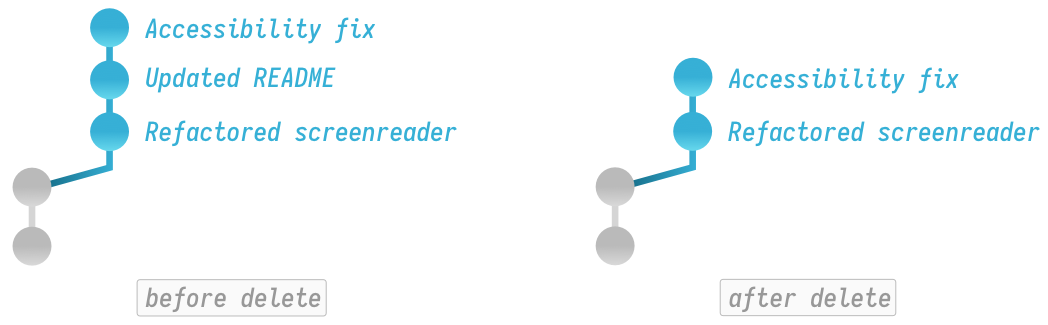
As you saw from the rewording example, interactive rebase has many more options, so let's dive into some. Say I'd like to remove a commit from my history.
I'll start by opening interactive rebase again, but this time I'll operate on the last three commits.
git rebase -i HEAD~3pick 2f8e823 Refactored screenreader attributes
pick 7f9d4bf Updated README
pick 3f8e810 Accessibility fix
# Rebase 4095f73..ec48d74 onto 4095f73 (3 commands)
#
# Commands:
# p, pick <commit> = use commit
# r, reword <commit> = use commit, but edit the commit message
# ...To remove a commit, I simply find the commit I'd like gone and change its prefix from pick to drop.
pick 2f8e823 Refactored screenreader attributes
drop 7f9d4bf Updated README
pick 3f8e810 Accessibility fix
Again, I'll save and quit the file and the commit is gone.
Reordering Commits
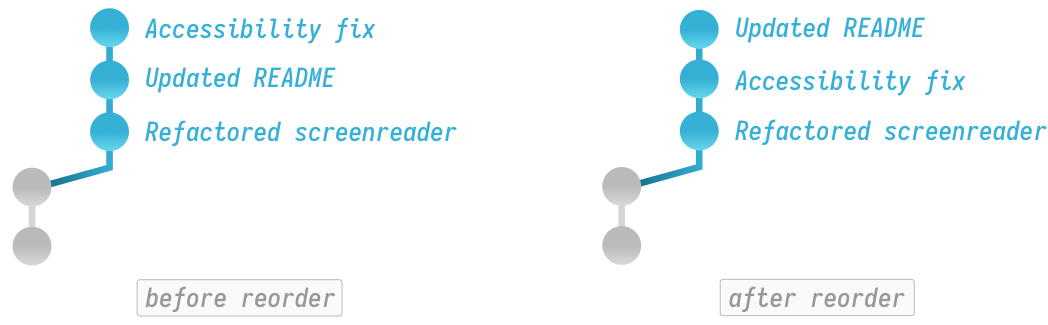
Reordering commits is just as easy. We'll enter interactive rebase again:
git rebase -i HEAD~2pick 7f9d4bf Updated README
pick 3f8e810 Accessibility fix
# Rebase 4095f73..ec48d74 onto 4095f73 (3 commands)
#
# Commands:
# p, pick <commit> = use commit
# r, reword <commit> = use commit, but edit the commit message
# ...To reorder, I'll simply change the order of commits by reordering their lines at the top of the file.
pick 3f8e810 Accessibility fix
pick 7f9d4bf Updated README
WARNING
Be careful here, if you delete a commit line and save this file without putting it back, Git will destroy the commit entirely.
I'll once again save and quit to finalize the reordering.
Squashing Commits
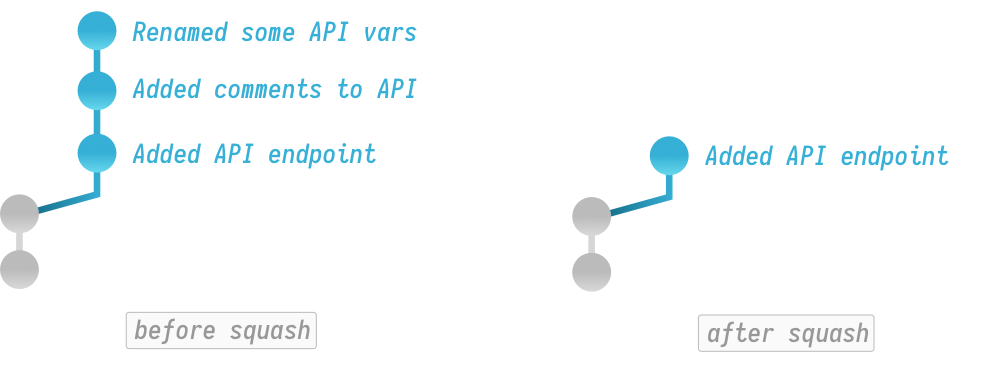
Now let's get into some fun stuff. Say I want to meld my previous 2 commits into one. We'll once again use interactive rebase…
git rebase -i HEAD~3pick 7f9d4bf Added API endpoint
pick 3f8e810 Added comments to API
pick ec48d74 Renamed some API vars
# Rebase 4095f73..ec48d74 onto 4095f73 (3 commands)
#
# Commands:
# ...
# s, squash <commit> = use commit, but meld into previous commit
# f, fixup <commit> = like "squash", but discard this commit's log message
# ...As you can see (above) Git provides two options for combining commits: squash and fixup. Both options do pretty much the same thing, except squash will kick you to an extra screen which allows you to edit the commit messages. I have a whole other article that goes into greater detail on the squash workflow, so for now I don't care about preserving those other log messages.
I'll change pick to fixup which indicates to Git that I want to meld this commit into the previous one then discard its log message.
pick 7f9d4bf Added API endpoint
fixup 3f8e810 Added comments to API
fixup ec48d74 Renamed some API vars
Now I'll save and quit this file. As you can see, I've ended up with a new squashed commit which contains the contents of all 3 previous commits.
git log --oneline617ebc5 (HEAD -> my_branch) Added API endpointSplitting Commits
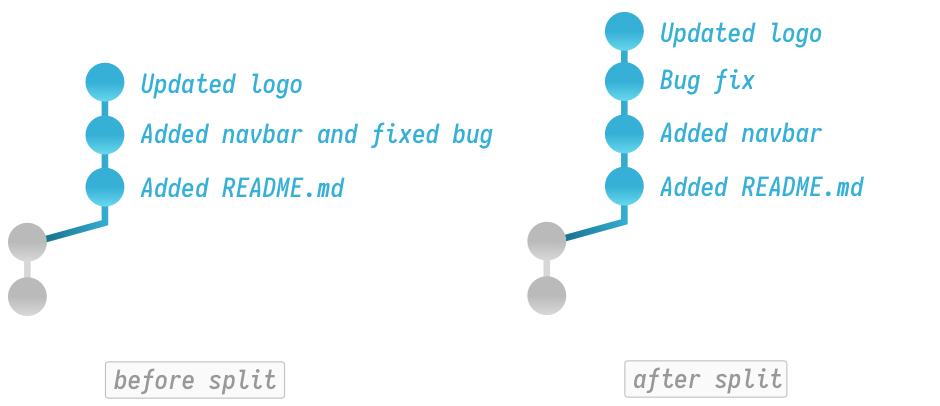
Lastly, let's talk about splitting commits. Down the line you may decide certain changes would be better off as separate commits and that's what splitting is all about.
git log --oneline3f8e810 Updated logo
ec48d74 Added navbar and fixed bug
2bf910f Added READMEAs you can see above, I'd really prefer if the second commit was split up. To make this happen, I'll enter interactive rebase once again.
git rebase -i HEAD~3pick Added README
pick Added navbar and fixed bug
pick Updated logo
# Rebase 4095f73..ec48d74 onto 4095f73 (3 commands)
#
# Commands:
# p, pick <commit> = use commit
# r, reword <commit> = use commit, but edit the commit message
# ...As you might guess, the splitting process is a bit more complicated than our previous operations, but don't worry, I'll break it down. First, we need to tell Git which commit we want to change. In this case I want to split the second commit so I'll change its keyword from pick to edit.
pick Added README
edit Added navbar and fixed bug
pick Updated logo
Next, I'll save and close the file. When I do this, Git will start executing any rebase operations I specified. Since I left the other commits alone, Git will do nothing to those; however, when it comes to the commit for which I specified edit, Git will pause the rebase operation and allow me to make changes.
Stopped at f124bc5... Added navbar and fixed bug
You can amend the commit now, with

    git commit --amend

Once you are satisfied with your changes, run

    git rebase --continue

jacklot in ~/dev/my_site6 (git)-[my_branch|rebase-i]-
As you can see above, Git dropped me back to the terminal on a special rebasing branch. I can now type commands that will modify our commit. To split this commit, I'll first want to undo the commit by unstaging all the files.
git reset HEAD^If I run git status you can see I have 3 files that are now unstaged and ready to be re-committed:
Untracked files:
  (use "git add <file>..." to include in what will be committed)

        analytics.js
        navbar.css
        navbar.html
Now I can re-commit the files using the normal add and commit workflow as below:
git add navbar.css navbar.html
git commit -m 'Added navbar'
git add analytics.js
git commit -m 'Fixed bug'
After I'm done re-committing all my files, I'll just tell Git to continue:
git rebase --continueThat's it. Now if I take a look at my history, you can see I've ended up with 4 commits after splitting:
git log --oneline3f8e810 Updated logo
ur48d47 Fixed bug
4c59d82 Added navbar
2bf910f Added README